User guide
How Mark My Hours works
The app notices when you arrive at work and when you leave, and writes down your hours. Here is everything you need to know, with screenshots from the app.
Set up in two minutes
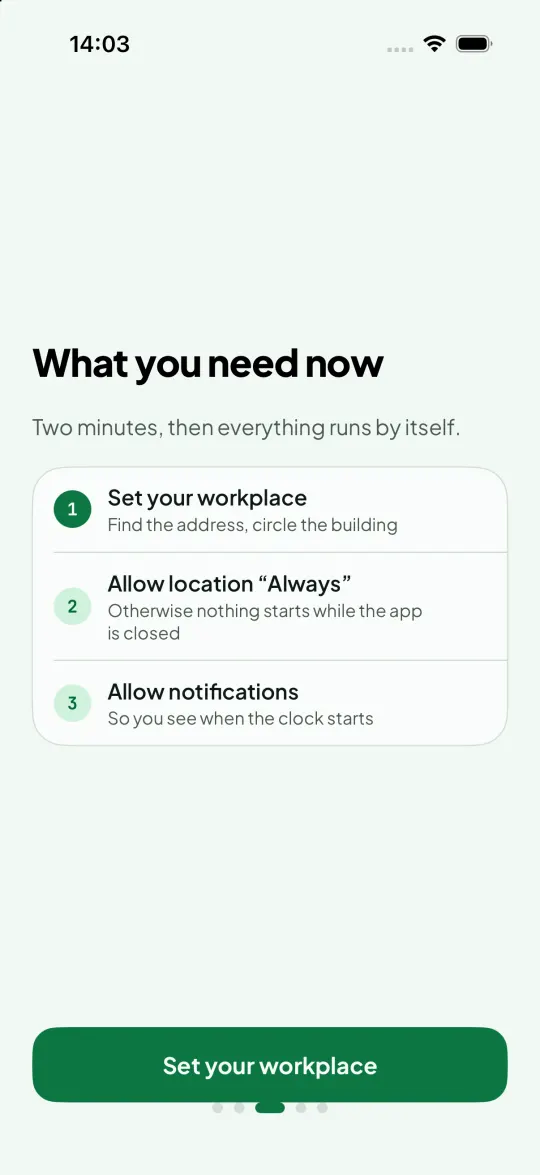
For the time to run by itself, the app needs three things. On first launch it walks you through all three:
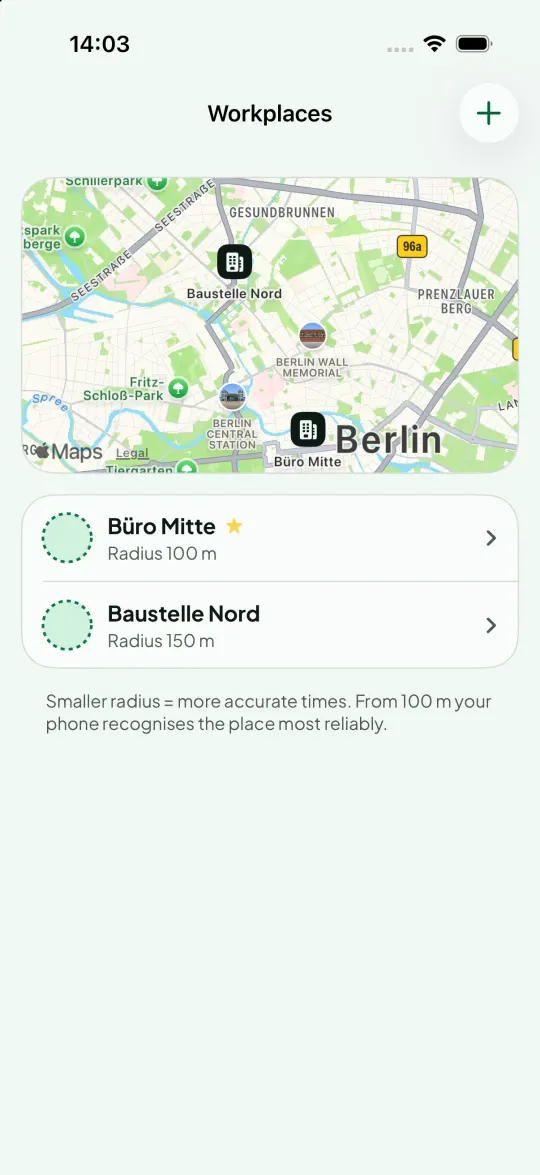
- Set your workplace: search for the address or company and put the circle around the building. From a 100 m radius your phone recognises the place most reliably. Add more workplaces under Settings → Workplaces.
- Allow location “Always”: only then does your phone notice your arrival while the app is closed. Your location stays on your device.
- Allow notifications: so the app can ask when something is unclear and show you the summary after work.
How the time runs by itself
Arriving: when you enter your workplace's circle, the time starts. You don't have to tap anything.
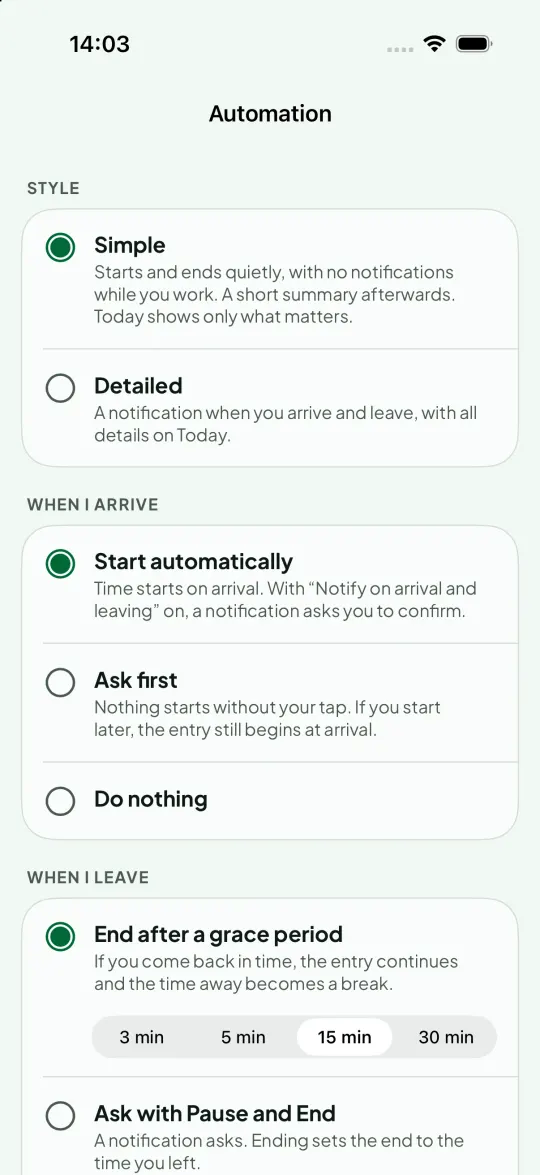
Leaving: when you leave the circle, the app waits a short grace period, for example 15 minutes. If you come back in time, the time keeps running and the time away becomes a break. If you stay away, the entry ends exactly when you left.
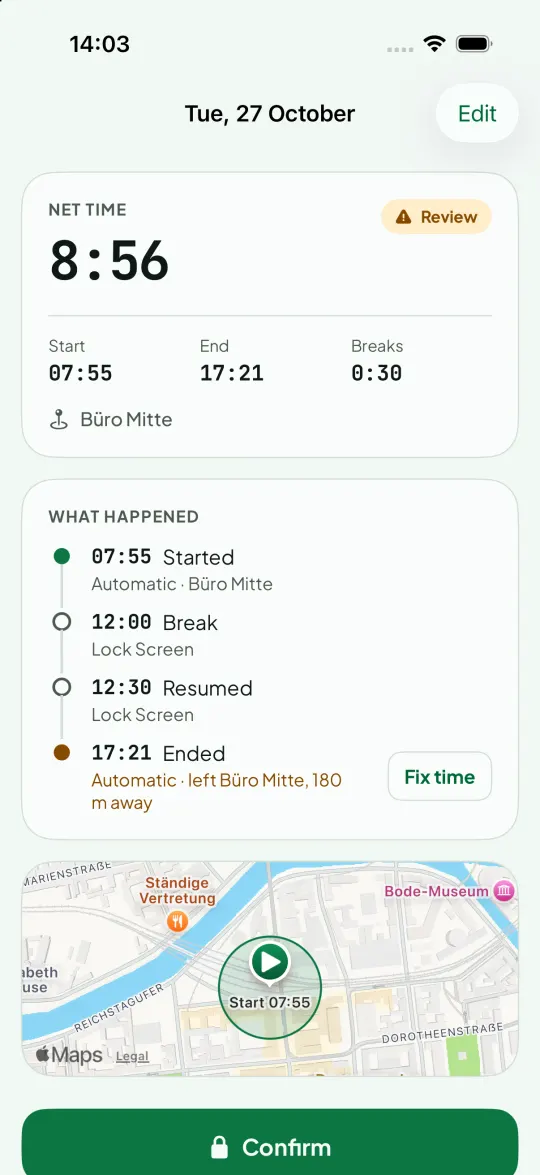
What the app did and when is listed in every entry under “What happened”, so everything can be checked. How the app reacts when you arrive and leave is set under Settings → Automation.
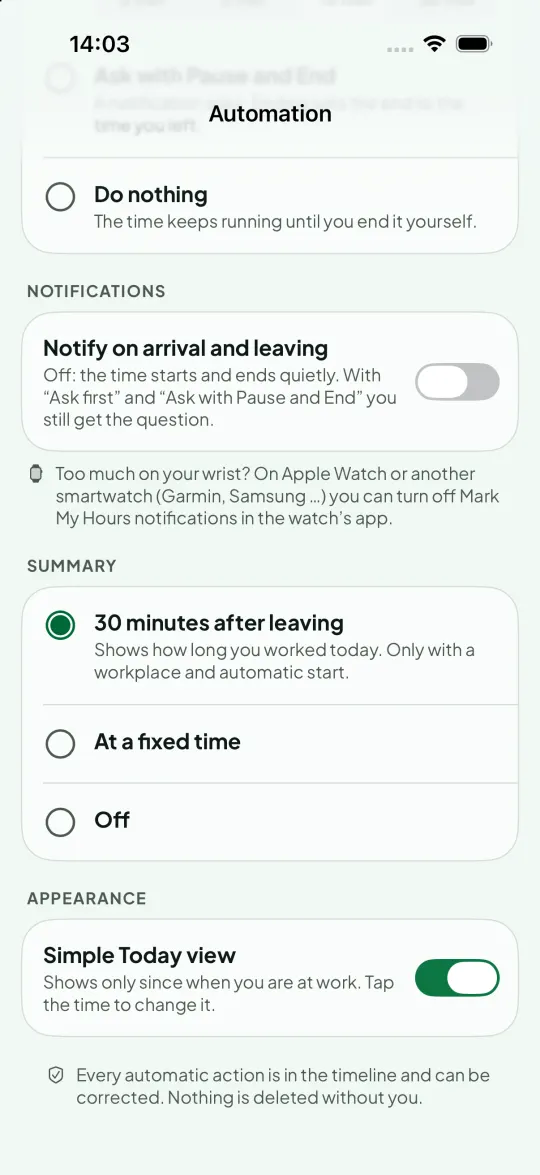
Forgot to end it? If an entry runs longer than 16 hours, it ends by itself and waits for your review. Set the limit under Settings → Automation (10, 12, 16 or 24 hours, or never).
Simple or Detailed: how much the app tells you
At the top of Settings → Automation you choose how much you want to hear from the app.
Simple is the setting for new users: the time starts and ends quietly, with no notification while you work. 30 minutes after you leave, a single notification tells you how long you worked, for example “Worked 8:12 today, 07:55–16:37”. Instead of 30 minutes afterwards you can pick a fixed time or turn the summary off. With Detailed you get a notification when you arrive and leave, and Today shows all details.
Notifications also show up on your watch. If that's too much, turn off Mark My Hours notifications for your smartwatch (Apple Watch, Garmin, Samsung …) in the watch's app. Your time is still recorded.
The Today screen
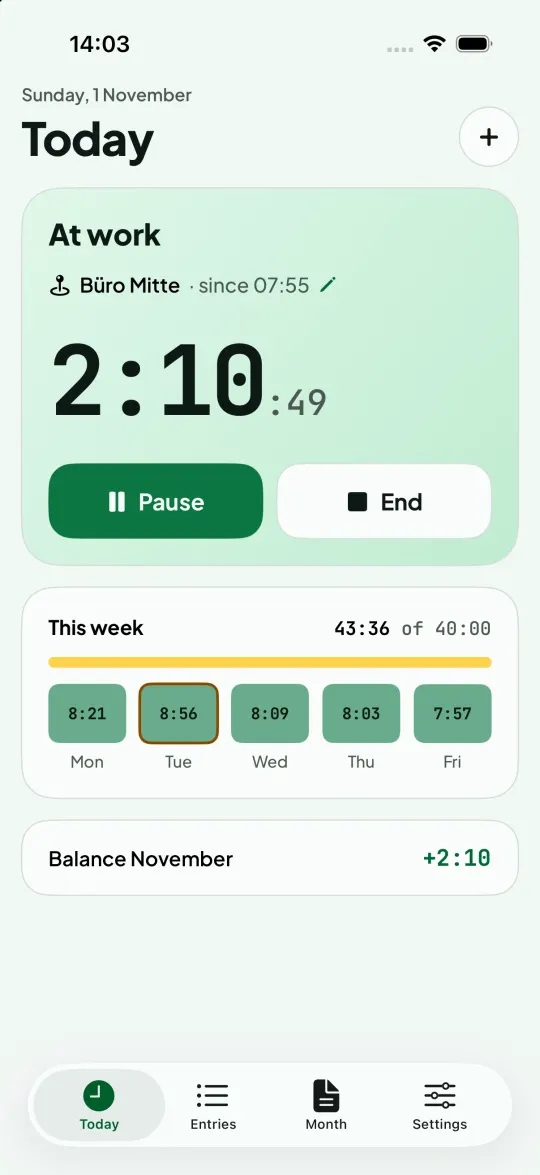
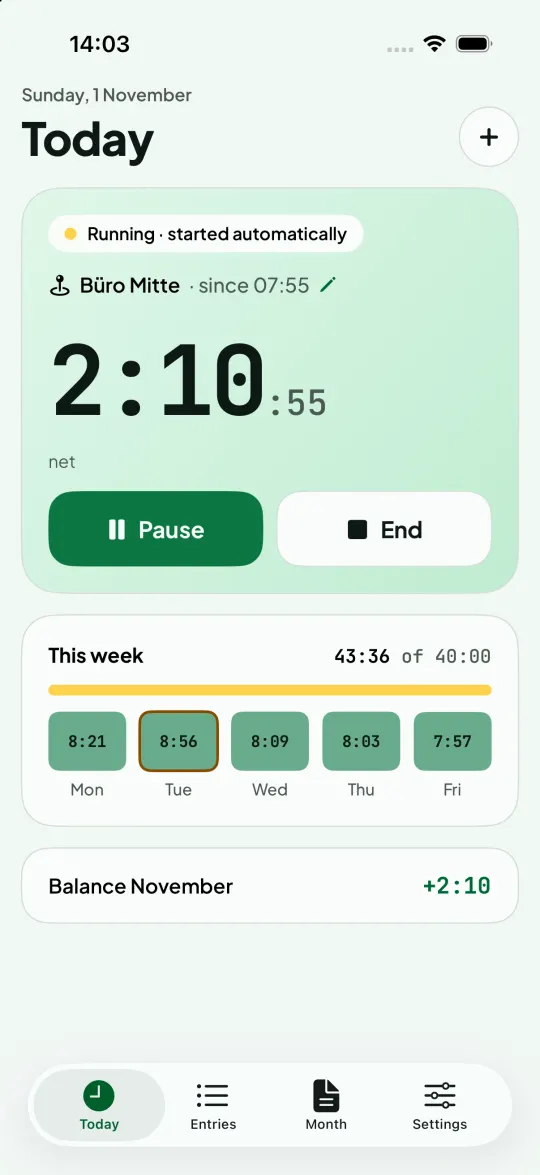
At the top you see whether you are at work and since when. The simple view shows only “At work”, the start time and the time so far. The detailed view also shows how the time started and which break is deducted. Switch under Settings → Automation → Appearance.
Start time not right? Tap “since 07:55” with the pencil and change the time, for example to 07:49 or 08:03.
Below is your week: each box shows the hours of one day. Tap a day to open its entry, check it or change it. An orange border means that day is still waiting for your review.
Fix and confirm times
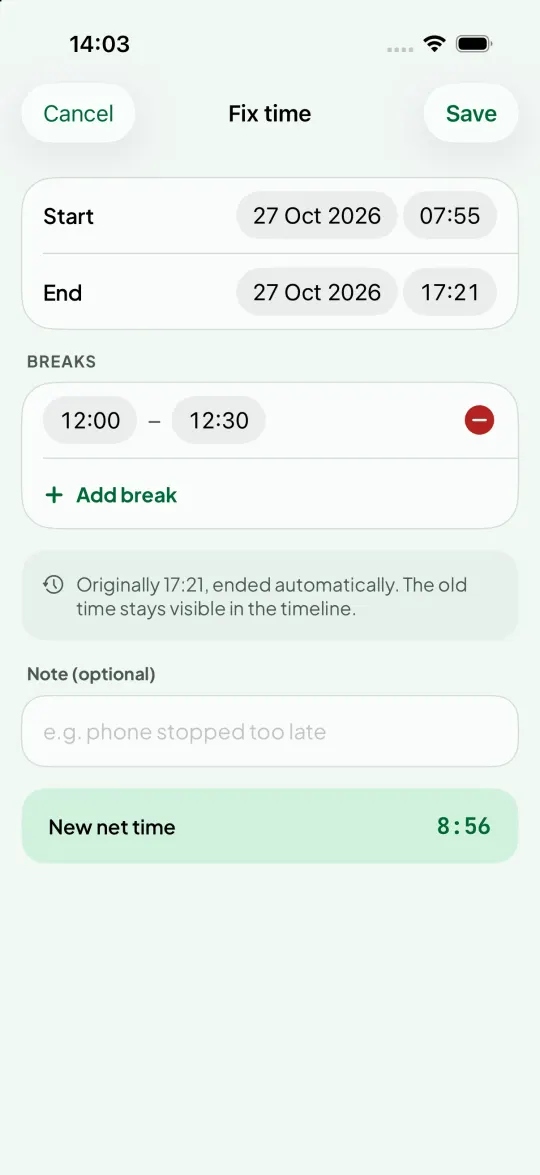
In any entry, tap “Fix time” to change start, end and breaks. The original time stays visible in the timeline, so every change can be traced.
“Confirm” closes an entry. Confirmed entries go into the timesheet. You can reopen them at any time.
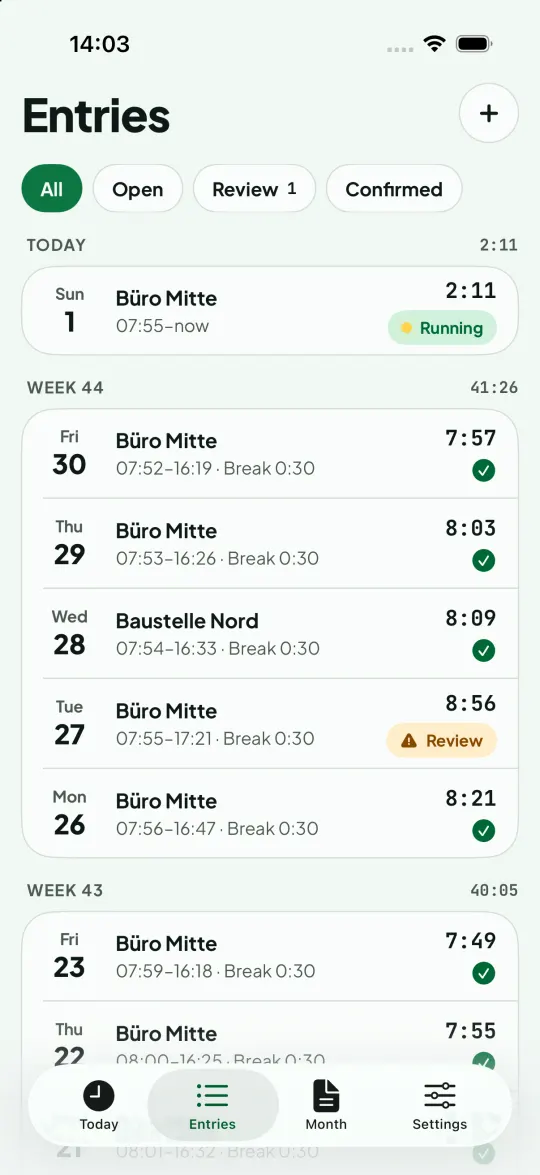
All entries
Entries lists all days by week. The filters at the top show only open, to-review or confirmed entries. Use + to add a day by hand, for example when you left your phone at home.
Month and timesheet PDF
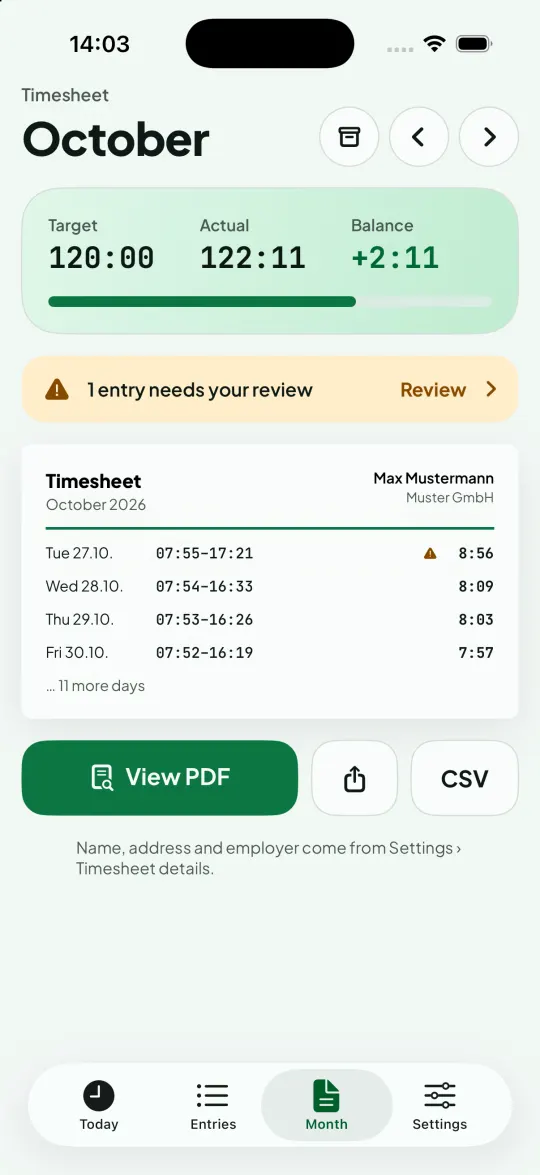
The month shows target, actual and balance. Set your target under Settings → Weekly target. Vacation days don't count as missing hours.
“View PDF” creates the timesheet for your employer, with your name, address and employer from Settings. Share it, print it or export it as CSV.
Lock Screen and breaks
While the time runs, you also see it on the Lock Screen (on iPhone also in the Dynamic Island) and can pause or end it there. If you don't want that, turn it off in Settings.
Under Settings → Breaks you set your usual break time, for example 12:00–13:00. If you leave during it, it becomes a break. If you like, the app deducts the statutory minimum break (Germany, Austria, Switzerland, Croatia).
Trial and Pro
For the first 7 days everything is free. After that you unlock Pro once, with no subscription. Without Pro no new time starts, but everything recorded stays visible and exportable.
Frequent questions
Why doesn't the time start by itself?
Check three things: location is allowed “Always”, the workplace has a radius of at least 100 m, and under Settings → Automation “When I arrive” is not set to “Do nothing”. In Low Power Mode the arrival can be noticed a few minutes later.
The start time is wrong. How do I change it?
On Today, tap the time next to the workplace, or open the entry and tap “Fix time”. The original time stays visible in the timeline.
I get too many notifications, also on my watch. What can I do?
Choose “Simple” under Settings → Automation. Then no notification comes while you work, only a short summary afterwards. On your smartwatch you can also turn off Mark My Hours notifications in the watch's app.
What happens if I step out, for example at lunch?
If you come back within the grace period or your usual break time, the time keeps running and the time away is recorded as a break. If you stay away longer, the entry ends at the moment you left.
Try it yourself
Mark My Hours notices when you arrive at work and when you leave, and writes your hours down on its own. At the end of the month you send your proof of hours as a PDF.
Get the app7 days free, then a one-time CHF 6